Connecting to the Monarc App
How to easily pair your Monarc Bike with the Monarc App
Check out this video from the Monarc Head of Product, Ryan Callahan, to get help on syncing your Monarc bike to the Monarc App. Watch Now→
- If you are opening the app, and syncing your bike for the first time. A Bluetooth and Firmware update will be required. Watch the video, or follow the instructions below to get information on this process.
- First, download the Monarc App from the App Store or Google Play.
 |  |
- Once installed on your device, follow the step to create an account and profile.
- Go into you Monarc Bike Settings → 'Add Device +' → Select 'Add Bike' → And you will be shown a QR Code.
- Scan the QR code through the Monarc App to connect your bike to the app.
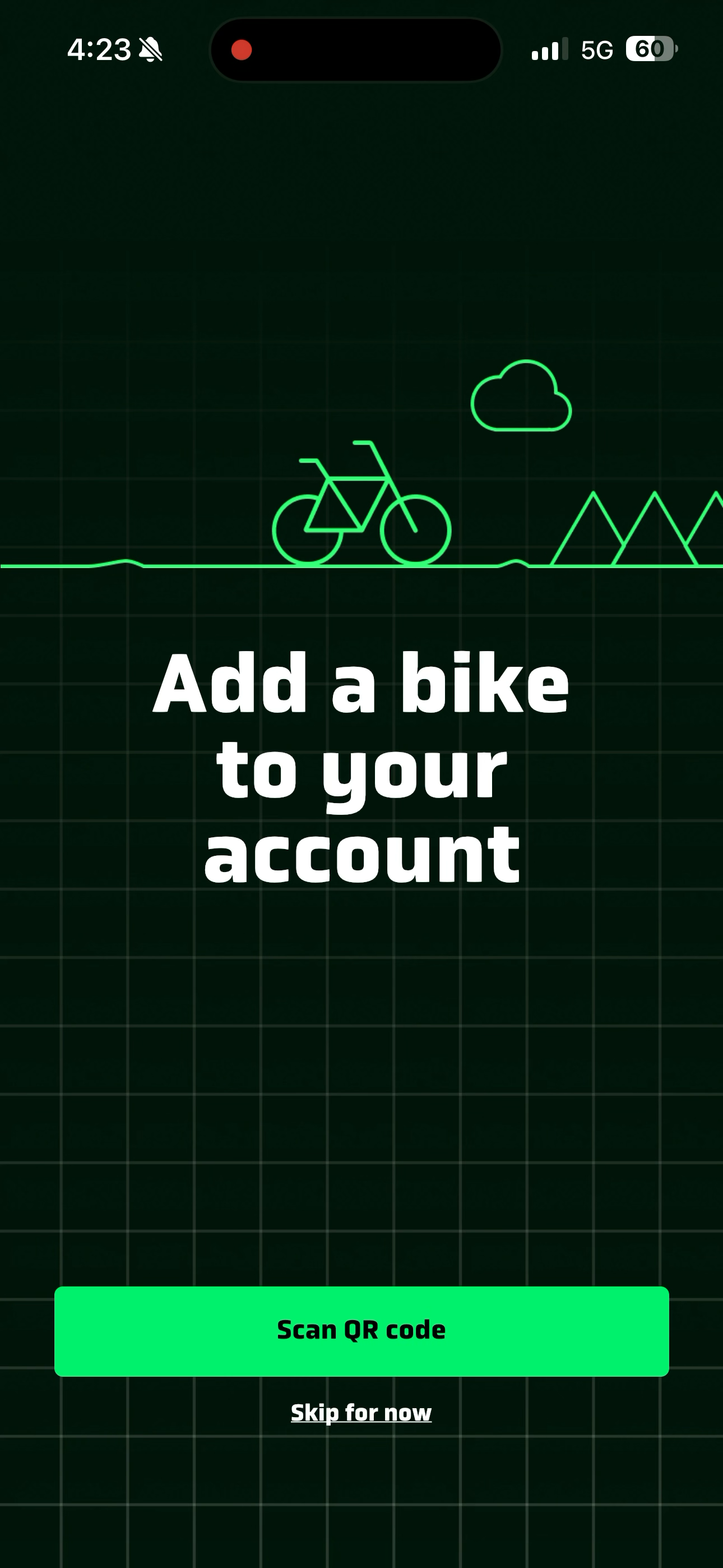
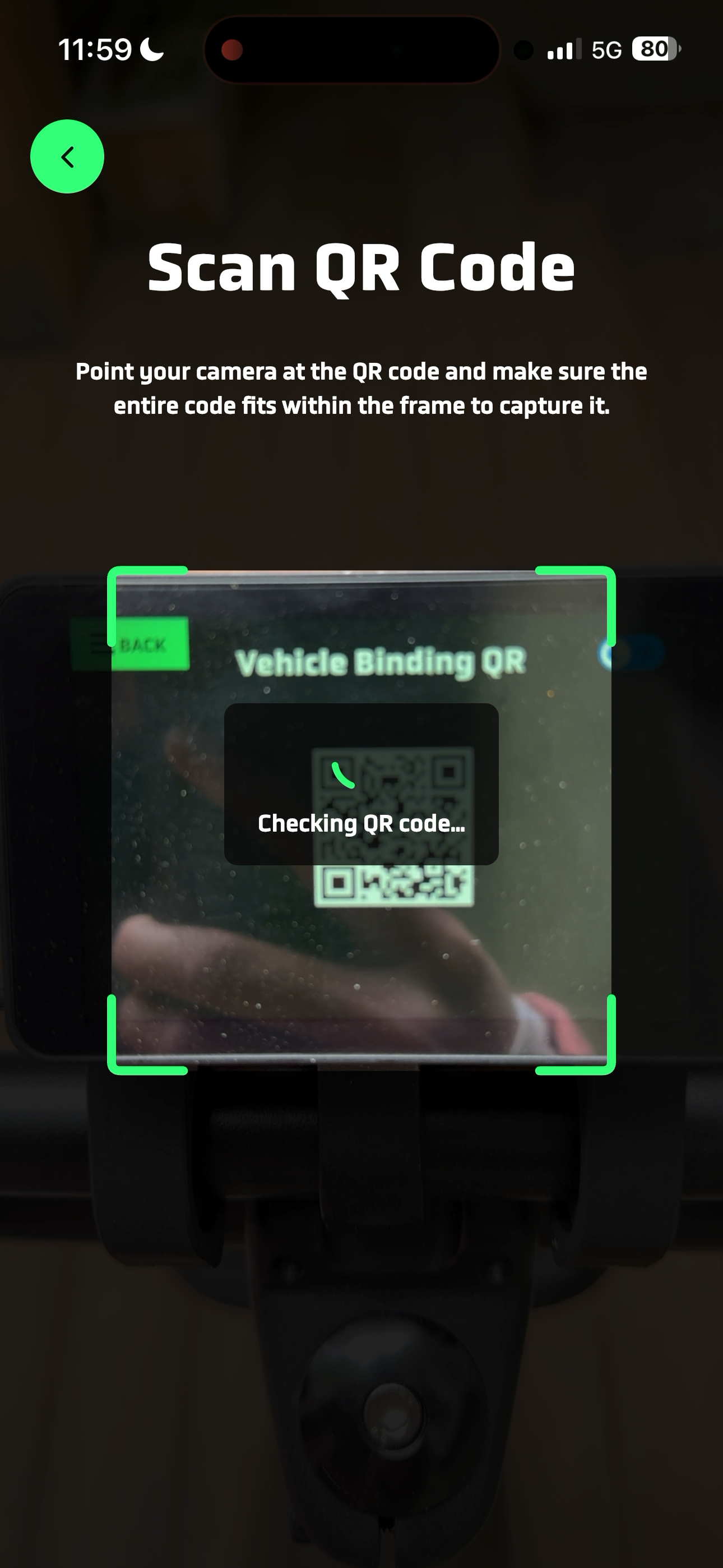
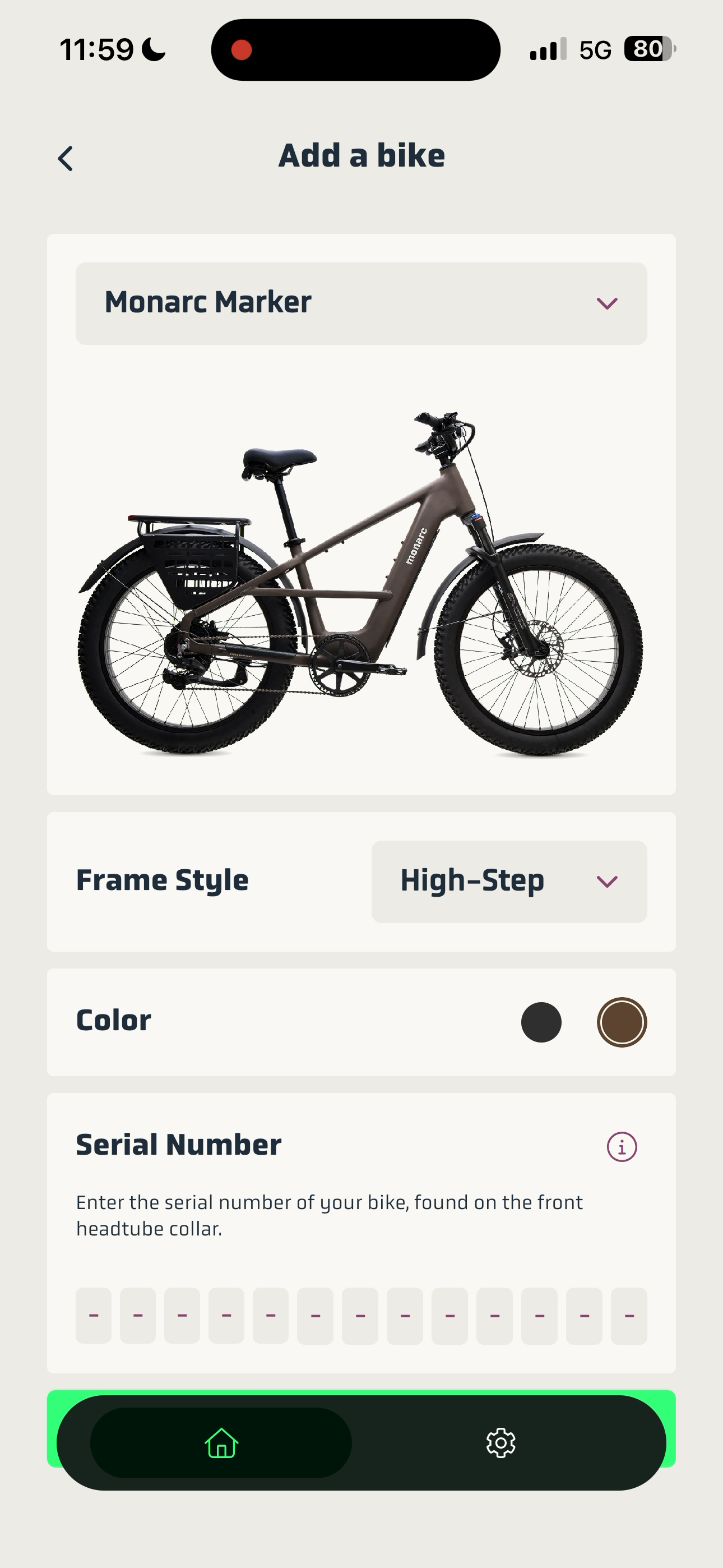
- The app will display a "Connected" or "Bike Paired" notification once the link is successful.
- Update Bluetooth: Next, you will be prompted to Update you Bluetooth Driver.
- This is important after you connect your app for the first time. Check your phone's system settings for any pending OS or Bluetooth updates, or restart your phone's Bluetooth module by toggling it off and on.
- Turn off the bike display completely using the power button. Wait 10 seconds, then turn the display back on and open the app.
Verification: Look at the bottom-right corner of the app main screen to confirm the status reads Paired.
- Update Display Firmware: Once paired a new prompt for Display Firmware Update will pop up.
- Tap the green arrow icon next to Display to start downloading. Keep your phone near the bike and powered on during installation (takes about 10–15 minutes).
Verification: The bike screen will show "Display Updating" with a progress percentage, changing to "Updated" once complete.
- Tap the green arrow icon next to Display to start downloading. Keep your phone near the bike and powered on during installation (takes about 10–15 minutes).
- Reboot Battery: Remove and Re-install the Battery
- Turn off the bike. Turn the key in the battery lock, pop the battery out of the frame, and wait 5 seconds before sliding it securely back into place until it clicks. Power the bike back on.
Verification: On your bike display, navigate to Settings > Bike > HMI Information and confirm the software version displays the new updated version number.
- Turn off the bike. Turn the key in the battery lock, pop the battery out of the frame, and wait 5 seconds before sliding it securely back into place until it clicks. Power the bike back on.
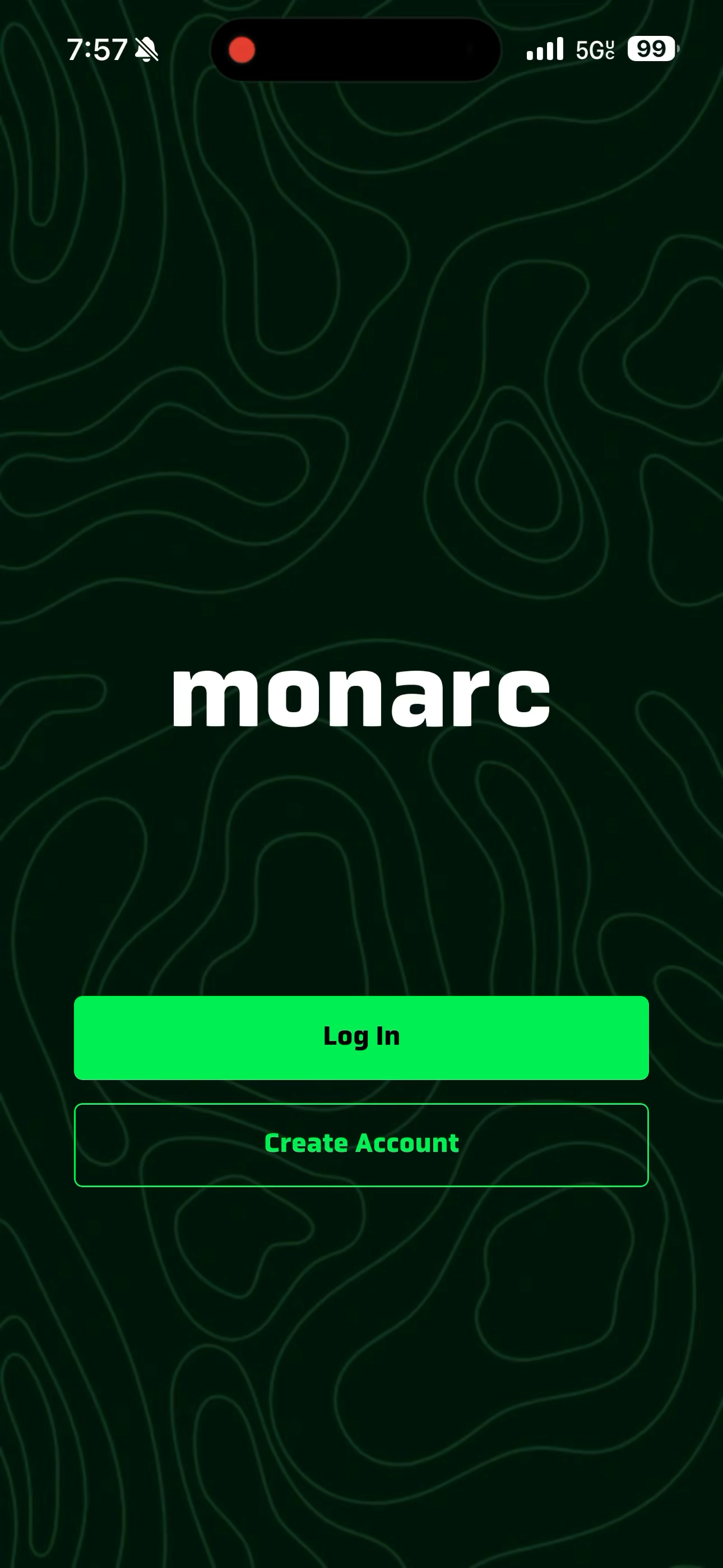
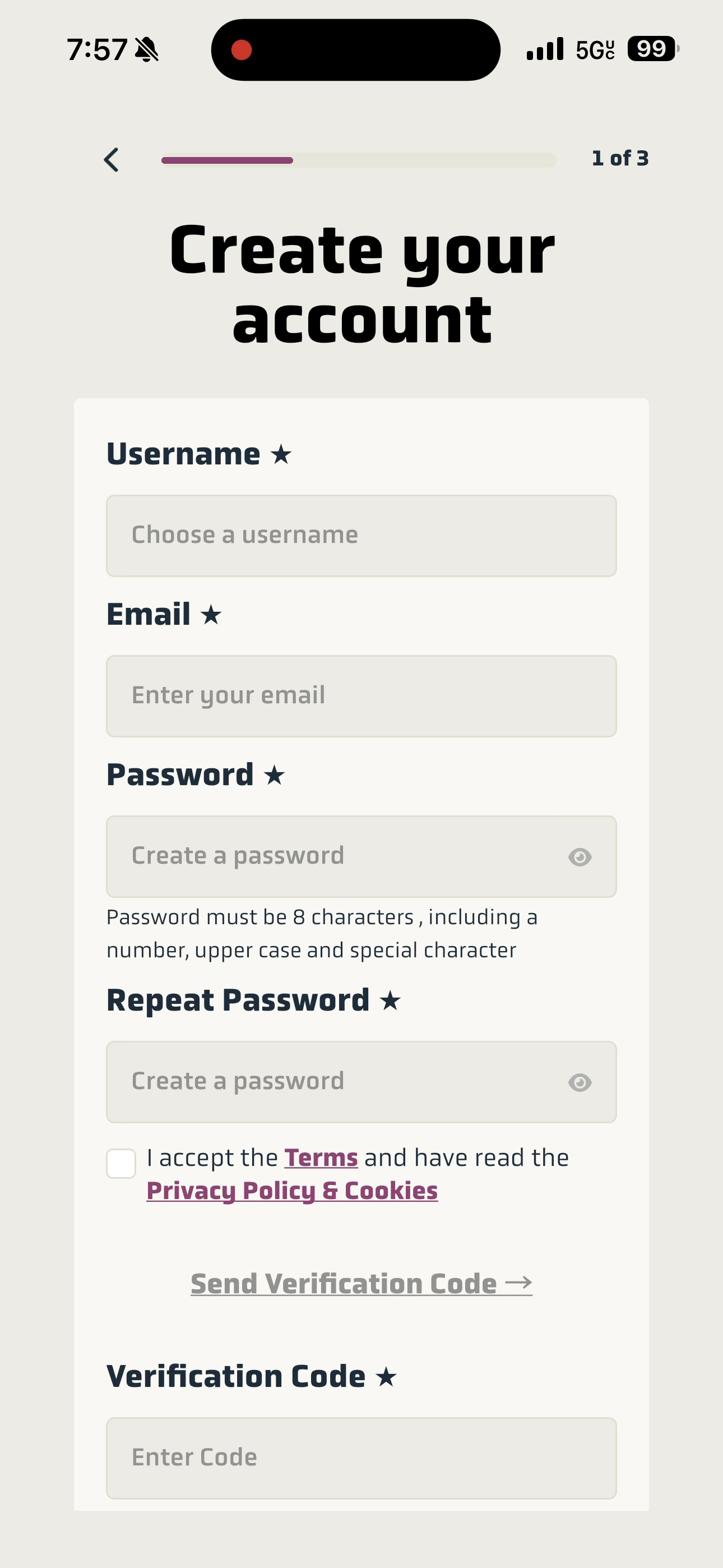
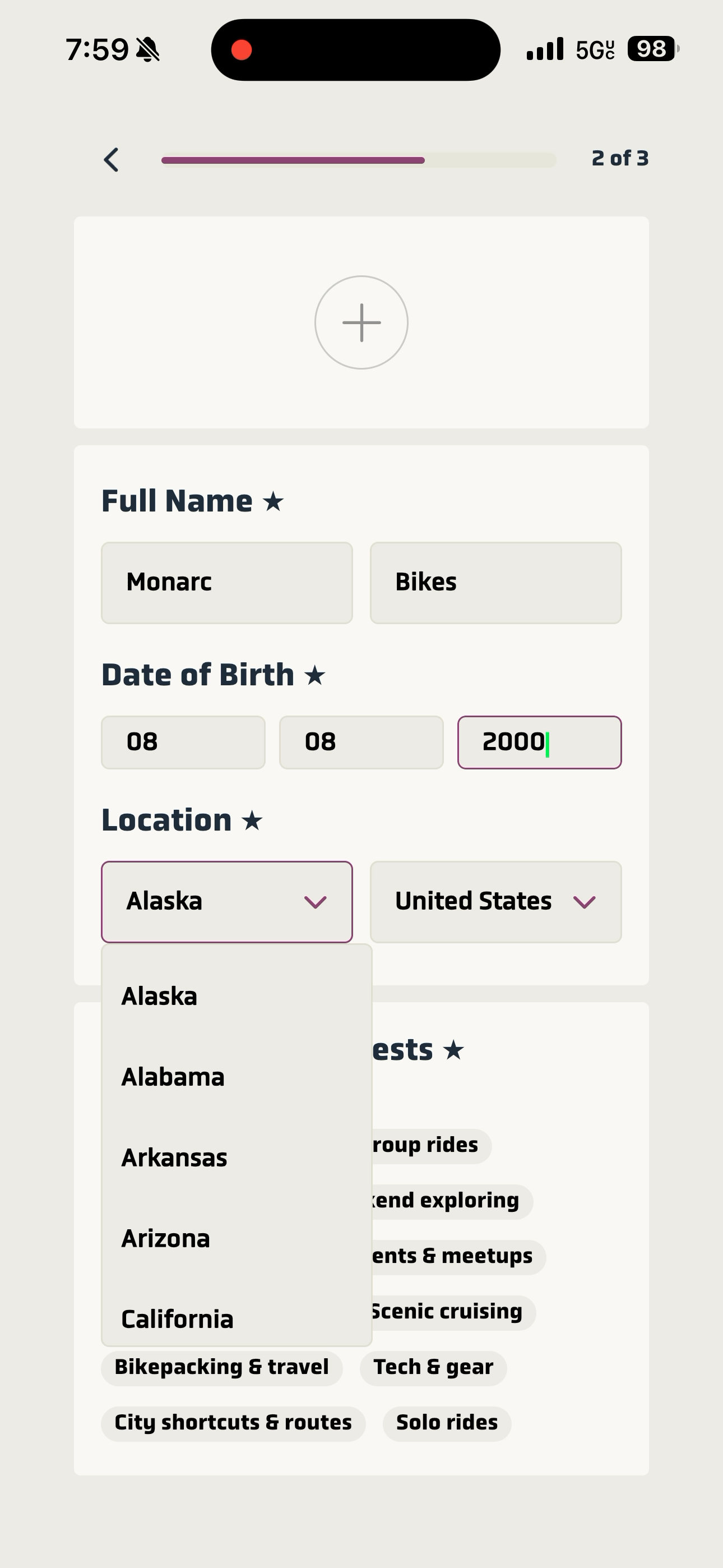
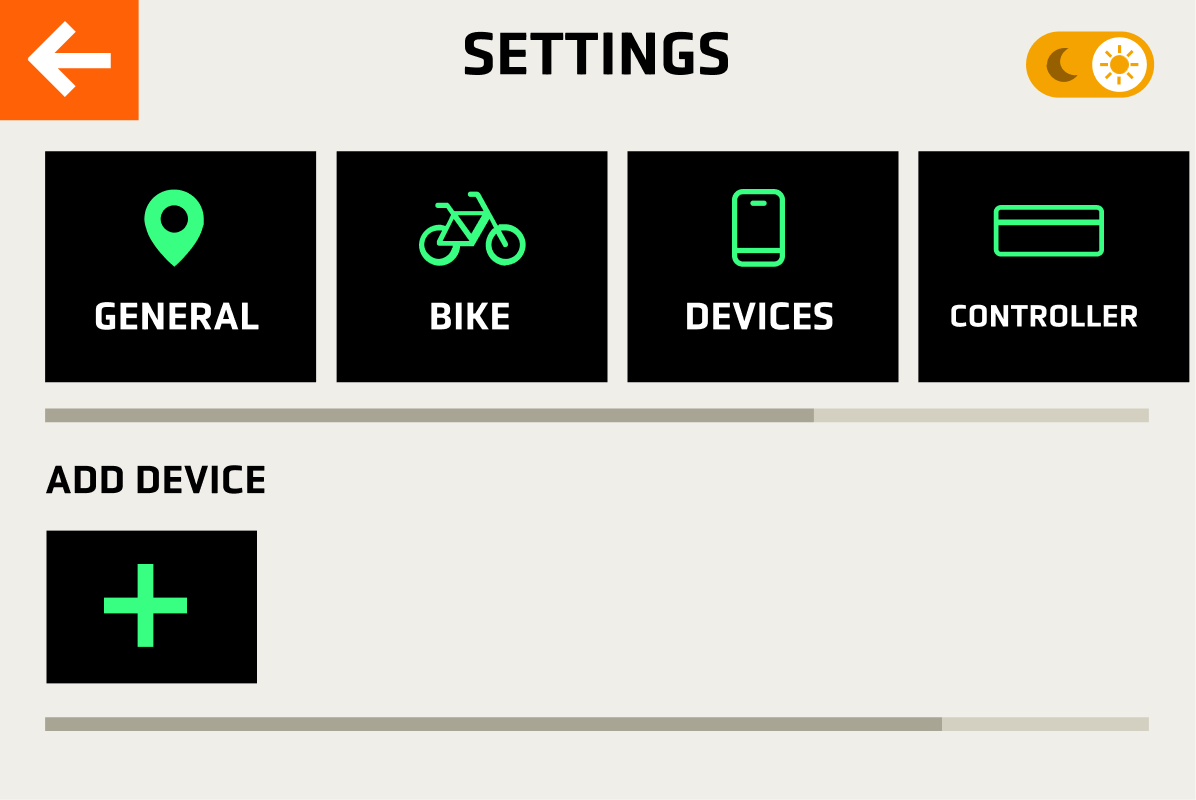
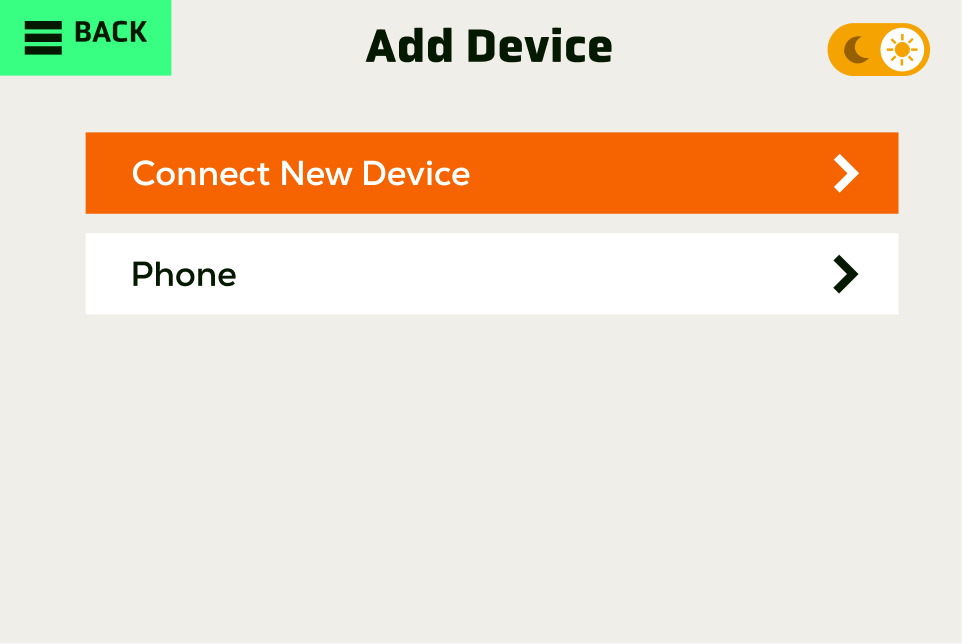
Your Monarc App is now connected to your Monarc Bike!
If you have any questions, please reach out to our team! We are available Mon- Fri 7am-7pm.
email: contact@monarcbikes.com
Phone: (952) 234-8779
Smart Helmet User Guide
Rear Radar Installation Instructions